> ## Documentation Index
> Fetch the complete documentation index at: https://docs.neo.projectdiscovery.io/llms.txt
> Use this file to discover all available pages before exploring further.
# HackerOne
> Connect HackerOne to Neo for report triage and Triage Summary automation
High-volume HackerOne programs can quickly turn into a triage queue. Incoming reports need to be read, checked for basic reproducibility, compared against existing context, and prioritized before your team can decide what deserves attention.
Use Neo as the first triage pass for HackerOne reports. Neo fetches the report, reviews the submission, validates the issue where possible, filters obvious noise, and produces a Triage Summary with verdict, evidence, impact, and recommended next steps. The result is faster prioritization with more context before a human reviewer takes over.
There are two ways to use HackerOne with Neo:
* **Triage from Neo**: Start a task in Neo and ask it to triage a HackerOne report. Neo fetches the report and shows the Triage Summary in Neo.
* **Triage from HackerOne**: Trigger Neo from a HackerOne automation. Neo fetches the report and posts the Triage Summary back to HackerOne.
## How it works
Neo connects to HackerOne through API credentials and optional HackerOne automations:
* **Report access**: Neo uses your HackerOne API credentials to fetch report details, activities, attachments, and program context.
* **Triage from Neo**: You can ask Neo to triage a HackerOne report by report ID or URL. The Triage Summary stays in Neo unless the task was started by HackerOne.
* **On-demand triage from HackerOne**: A HackerOne automation can start Neo when an internal comment includes a trigger such as `@neo triage`.
* **Automatic triage from HackerOne**: A HackerOne automation can start Neo when a new report is submitted.
* **Triage Summary posting**: Neo posts the Triage Summary back to HackerOne only for tasks started by HackerOne automation.
Neo's HackerOne actions are strictly scoped. Neo only posts internal Triage Summary comments for automation-started triage and can create or update Neo-owned automations when you ask it to. It does not post public replies, change report state, assign bounty, or take other report-changing actions.
## Setup
Choose the setup path that matches how you want to start triage.
### Triage from Neo
Use this path when you want to start a Neo task manually and ask Neo to triage a HackerOne report by ID or URL.
1. In HackerOne, create or copy an organization API token from **Organization Settings > API Tokens**. HackerOne documents this in its [organization API tokens guide](https://docs.hackerone.com/organizations/api-tokens.html).
2. In Neo, open [Settings > Secrets](https://neo.projectdiscovery.io/task?settings=secrets) and add these two credentials exactly:
| Variable | Purpose |
| :------------------ | :-------------------------------------------------------------------------------------------------- |
| `H1_API_IDENTIFIER` | HackerOne organization API token name. This is the token identifier used as the HTTP Basic username |
| `H1_API_TOKEN` | HackerOne organization API token value used with the identifier |
After this, you can ask Neo to fetch and review a HackerOne report ID or report URL. The Triage Summary appears in the Neo task.
### Triage from HackerOne
Use this path when you want HackerOne to start Neo automatically from an internal comment or a new report event.
1. In HackerOne, open **Organization Settings > Automations > Secrets**. You can start from `https://hackerone.com/organizations//automations` and open the Secrets page from there. HackerOne documents automation secrets in its [External Connectors guide](https://docs.hackerone.com/en/articles/11179569-external-connectors).
2. Create these two secrets exactly:
| Secret | Purpose |
| :---------------- | :------------------------------------------------------------------------------------------------------------------------------------------------ |
| `neo_webhook_url` | Use `https://webhook.api.projectdiscovery.io/hackerone/webhook_events` unless your Neo account team provided a custom webhook URL |
| `neo_api_key` | Your Neo API key from [Settings > API Key](https://neo.projectdiscovery.io/task?settings=api-key), used by HackerOne automations when calling Neo |
HackerOne automation scripts read these values from HackerOne secrets when they call Neo. Keep the variable names unchanged, because the automation code references these names directly.
After the Neo credentials and HackerOne automation secrets are in place, ask Neo to create or enable one or both HackerOne automations:
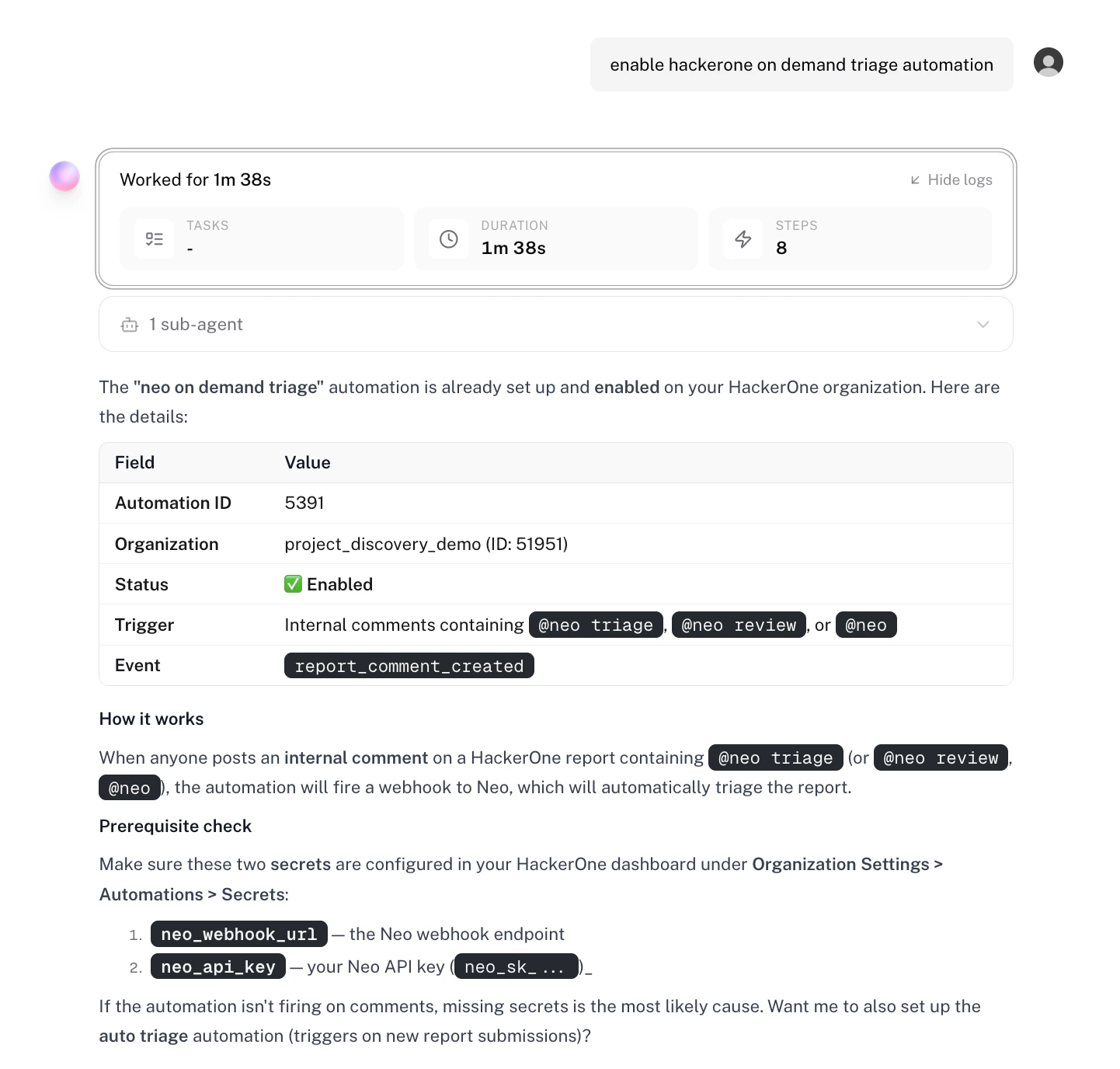 | Automation | Trigger | Result |
| :----------------------- | :--------------------------------------------------------------------- | :----------------------------------------------------------------------------- |
| **neo on demand triage** | An internal HackerOne comment includes a trigger such as `@neo triage` | Neo starts triage for that report and posts a Triage Summary back to HackerOne |
| **neo auto triage** | A new HackerOne report is submitted | Neo starts initial triage and posts a Triage Summary back to HackerOne |
Creating or updating HackerOne automations requires a HackerOne organization API token with Organization Administrator permissions.
Triage started from Neo shows the Triage Summary in Neo. Triage started from HackerOne automation posts the Triage Summary back to the HackerOne report.
## Examples
### Triage from Neo
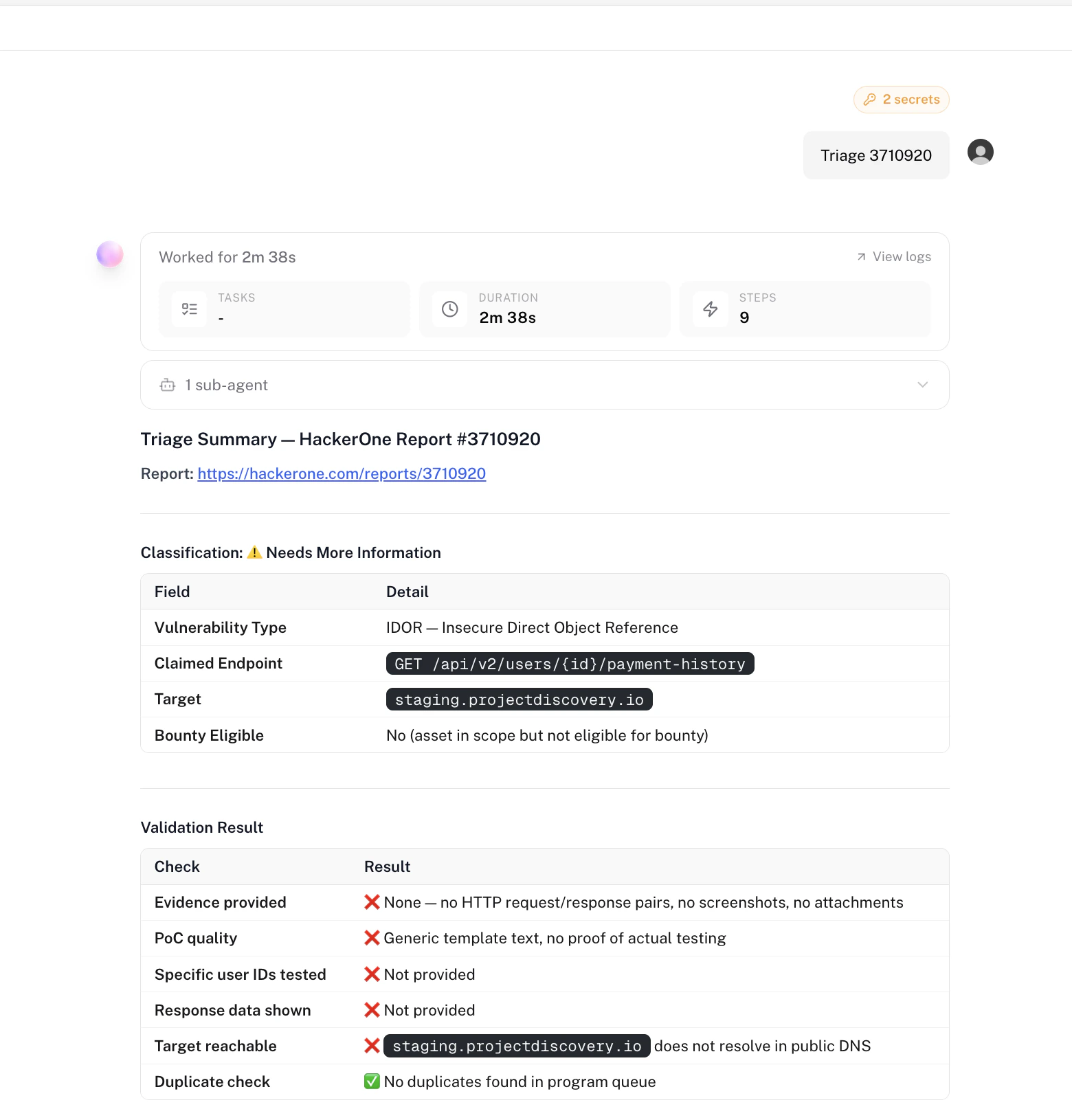
When you start triage from Neo, the report is fetched from HackerOne and the Triage Summary appears in the Neo task.
| Automation | Trigger | Result |
| :----------------------- | :--------------------------------------------------------------------- | :----------------------------------------------------------------------------- |
| **neo on demand triage** | An internal HackerOne comment includes a trigger such as `@neo triage` | Neo starts triage for that report and posts a Triage Summary back to HackerOne |
| **neo auto triage** | A new HackerOne report is submitted | Neo starts initial triage and posts a Triage Summary back to HackerOne |
Creating or updating HackerOne automations requires a HackerOne organization API token with Organization Administrator permissions.
Triage started from Neo shows the Triage Summary in Neo. Triage started from HackerOne automation posts the Triage Summary back to the HackerOne report.
## Examples
### Triage from Neo
When you start triage from Neo, the report is fetched from HackerOne and the Triage Summary appears in the Neo task.
 ### Triage from HackerOne
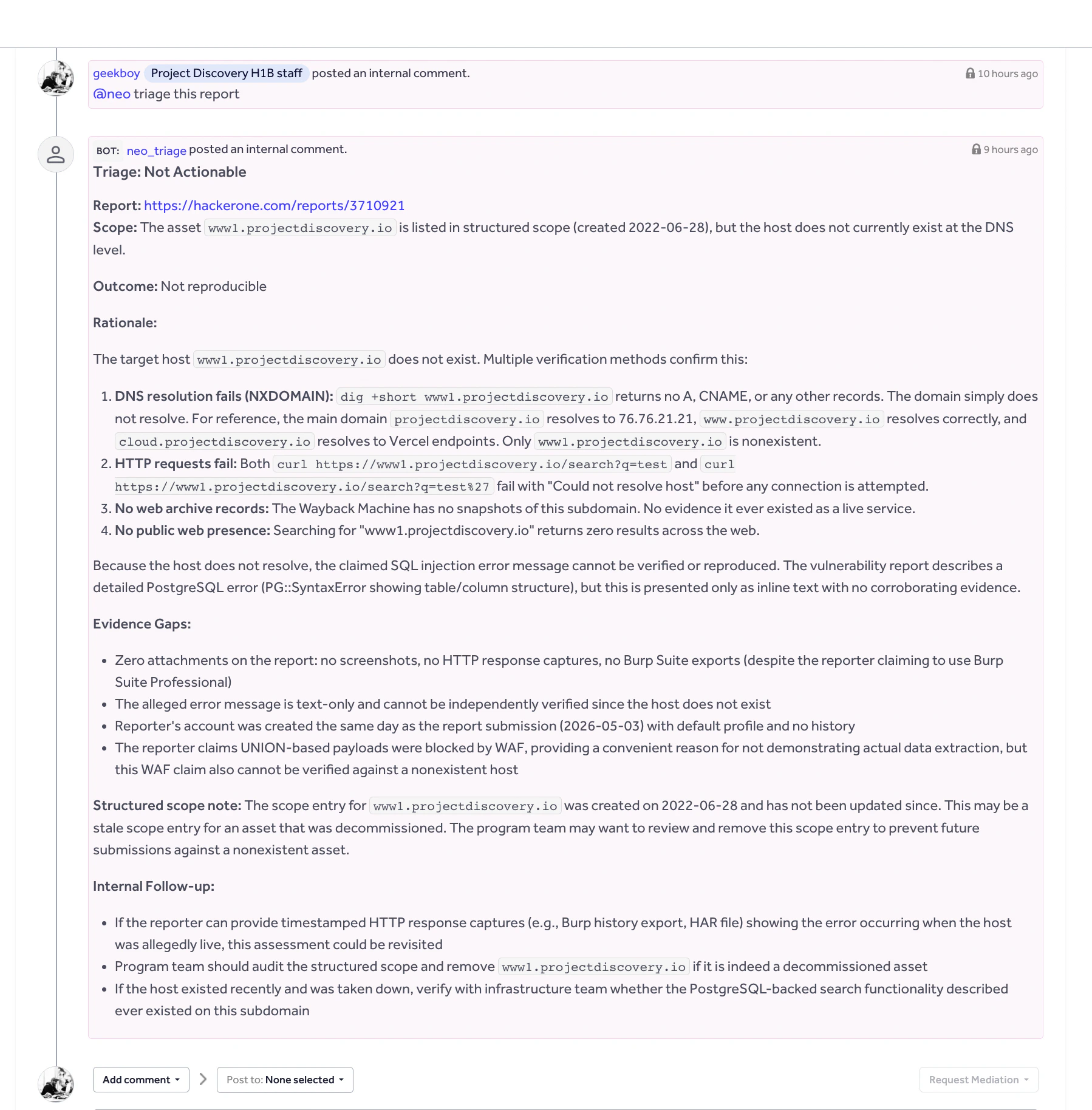
When HackerOne starts triage through an automation, Neo posts the Triage Summary back to the HackerOne report.
### Triage from HackerOne
When HackerOne starts triage through an automation, Neo posts the Triage Summary back to the HackerOne report.
 ## Use cases
| Use Case | How Neo Helps |
| :------------------------------------- | :------------------------------------------------------------------------------------------------------------------------------------- |
| Report triage from Neo | Ask Neo to review a HackerOne report ID or URL, determine likely validity, summarize impact, and recommend next steps. |
| On-demand report review from HackerOne | Trigger Neo from an internal HackerOne comment when a report needs deeper analysis, duplicate checks, or reproduction guidance. |
| Duplicate detection | Compare a report against related submissions and historical context to identify likely duplicates or recurring vulnerability patterns. |
| Triage Summary | Generate a structured Triage Summary with verdict, evidence, severity assessment, and recommended next steps. |
## Use cases
| Use Case | How Neo Helps |
| :------------------------------------- | :------------------------------------------------------------------------------------------------------------------------------------- |
| Report triage from Neo | Ask Neo to review a HackerOne report ID or URL, determine likely validity, summarize impact, and recommend next steps. |
| On-demand report review from HackerOne | Trigger Neo from an internal HackerOne comment when a report needs deeper analysis, duplicate checks, or reproduction guidance. |
| Duplicate detection | Compare a report against related submissions and historical context to identify likely duplicates or recurring vulnerability patterns. |
| Triage Summary | Generate a structured Triage Summary with verdict, evidence, severity assessment, and recommended next steps. |