> ## Documentation Index
> Fetch the complete documentation index at: https://docs.neo.projectdiscovery.io/llms.txt
> Use this file to discover all available pages before exploring further.
# Usage
> Work with Neo in DMs and channels, use threads effectively, share files, and stop running tasks with reactions.
Once your workspace is connected, Neo can be used directly inside Slack for fast, collaborative security work.
## Where You Can Use Neo
Neo works in two main modes:
* **Direct messages** for focused one-on-one interaction with Neo
* **Channels and threads** for team-visible investigations and follow-up
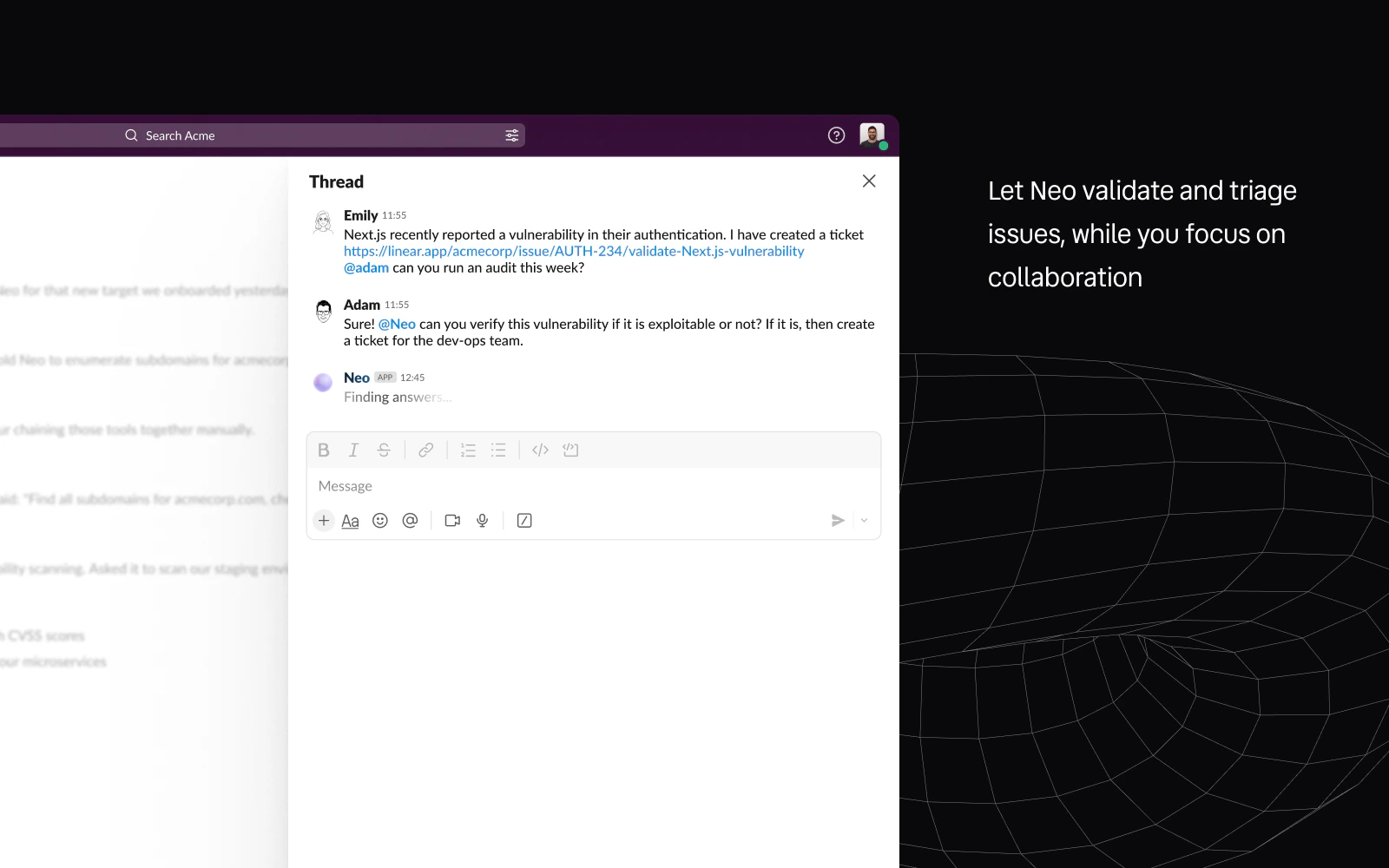
In channels, threading matters. Neo keeps work scoped to a thread so the conversation, task status, and final summary stay in one place.
## DMs vs Channels
### DMs
DMs are the simplest way to work with Neo:
* no mention is required
* the conversation is naturally scoped
* ideal for focused recon, research, and exploratory work
### Channels
In channels, Neo is best used when the task belongs in a team conversation:
* in public and private channels Neo only responds when explicitly mentioned with `@Neo` — plain channel messages are ignored even if the bot is in the channel
* in group DMs (multi-person DMs) Neo also requires an `@Neo` mention to act
* keep follow-up in the same thread
* share findings where the rest of the team can see them
If Neo is disabled for a channel, users are guided toward admin settings or a DM instead.
## Starting A Task
Slack works well for instructions such as:
* “Run a full recon on `example.com` and look for exposed admin endpoints.”
* “Review this code path for auth bypass or IDOR risk.”
* “Research this CVE and tell me whether it is relevant to our stack.”
* “Summarize the likely impact of this finding and what to check next.”
Neo can also work from attached files when the request needs more context.
## Attachments And Files
When you attach files to your Slack request, Neo can use them as part of the task context.
Good examples include:
* logs
* text summaries
* code snippets
* reports
* exported findings or evidence files
For larger or more detailed outputs, Neo can return a concise Slack summary while attaching result files back into the thread.
## What Results Look Like
Neo is designed to keep Slack readable:
* it posts concise summaries in-thread
* it highlights the key outcome instead of dumping raw output
* it attaches files when the detailed output belongs outside the message body
* it links the work back to Neo for deeper follow-up
 ## Task Visibility Is Team-Specific
Work started from Slack is not treated as a private task owned only by the person who sent the message.
* each Slack workspace is connected to a specific Neo team
* tasks created from Slack are stored in that Neo team context
* visibility inside Neo follows the connected team's access model
* DMs keep the Slack conversation focused, but the resulting Neo task is still team-scoped
## Continue In Neo
Slack is the fast front door, not the only surface.
If the task becomes more complex, Neo continues to be available in the full Neo UI for:
* full execution context
* complete artifacts
* longer follow-up tasks
* reviewable task history
## Stop A Running Task With Reactions
If Neo is still working on a request, you can abort the running task directly from the Slack thread by reacting with any of these:
```text theme={"system"}
🛑 ❌ ✋ 🚫
```
Reaction-based abort is useful when:
* the task is no longer needed
* the target or scope changed
* you realize the prompt needs to be corrected
* you want to stop long-running work before it finishes
What to expect:
* only a currently running Slack task is affected
* Neo confirms the abort request in the thread
* unrelated reactions do not stop work
If your workspace installed Neo before reaction-based abort shipped, reinstall or reconnect the app after the permissions update so the latest event subscription and scopes are active.
## Example Prompts
Try prompts like these:
* “Run a full recon on `acme.com` and summarize exposed services and likely risk areas.”
* “Review this API design for authentication and authorization gaps.”
* “Research `CVE-2026-XXXX` and tell me whether it matters for our environment.”
* “Look through this attached report and summarize the issues worth validating first.”
* “Continue the investigation from above and tell me what you would test next.”
## Next
* Understand setup and reconnect behavior: [Slack Install & Connect](/integrations/slack-install-and-connect)
* Review admin controls and permissions: [Slack Admin & Permissions](/integrations/slack-admin-and-permissions)
* Fix common issues: [Slack Troubleshooting](/integrations/slack-troubleshooting)
## Task Visibility Is Team-Specific
Work started from Slack is not treated as a private task owned only by the person who sent the message.
* each Slack workspace is connected to a specific Neo team
* tasks created from Slack are stored in that Neo team context
* visibility inside Neo follows the connected team's access model
* DMs keep the Slack conversation focused, but the resulting Neo task is still team-scoped
## Continue In Neo
Slack is the fast front door, not the only surface.
If the task becomes more complex, Neo continues to be available in the full Neo UI for:
* full execution context
* complete artifacts
* longer follow-up tasks
* reviewable task history
## Stop A Running Task With Reactions
If Neo is still working on a request, you can abort the running task directly from the Slack thread by reacting with any of these:
```text theme={"system"}
🛑 ❌ ✋ 🚫
```
Reaction-based abort is useful when:
* the task is no longer needed
* the target or scope changed
* you realize the prompt needs to be corrected
* you want to stop long-running work before it finishes
What to expect:
* only a currently running Slack task is affected
* Neo confirms the abort request in the thread
* unrelated reactions do not stop work
If your workspace installed Neo before reaction-based abort shipped, reinstall or reconnect the app after the permissions update so the latest event subscription and scopes are active.
## Example Prompts
Try prompts like these:
* “Run a full recon on `acme.com` and summarize exposed services and likely risk areas.”
* “Review this API design for authentication and authorization gaps.”
* “Research `CVE-2026-XXXX` and tell me whether it matters for our environment.”
* “Look through this attached report and summarize the issues worth validating first.”
* “Continue the investigation from above and tell me what you would test next.”
## Next
* Understand setup and reconnect behavior: [Slack Install & Connect](/integrations/slack-install-and-connect)
* Review admin controls and permissions: [Slack Admin & Permissions](/integrations/slack-admin-and-permissions)
* Fix common issues: [Slack Troubleshooting](/integrations/slack-troubleshooting)