> ## Documentation Index
> Fetch the complete documentation index at: https://docs.neo.projectdiscovery.io/llms.txt
> Use this file to discover all available pages before exploring further.
# Overview
> Use Neo directly in Slack to run security tasks, review findings, and continue investigations with your team.
 The Slack integration is in early preview and currently being rolled out gradually. Reach out to our team to get access.
**Powered by AI.** Neo uses large language models to drive its security analysis. Outputs may occasionally be incomplete or inaccurate — verify findings before acting on them.
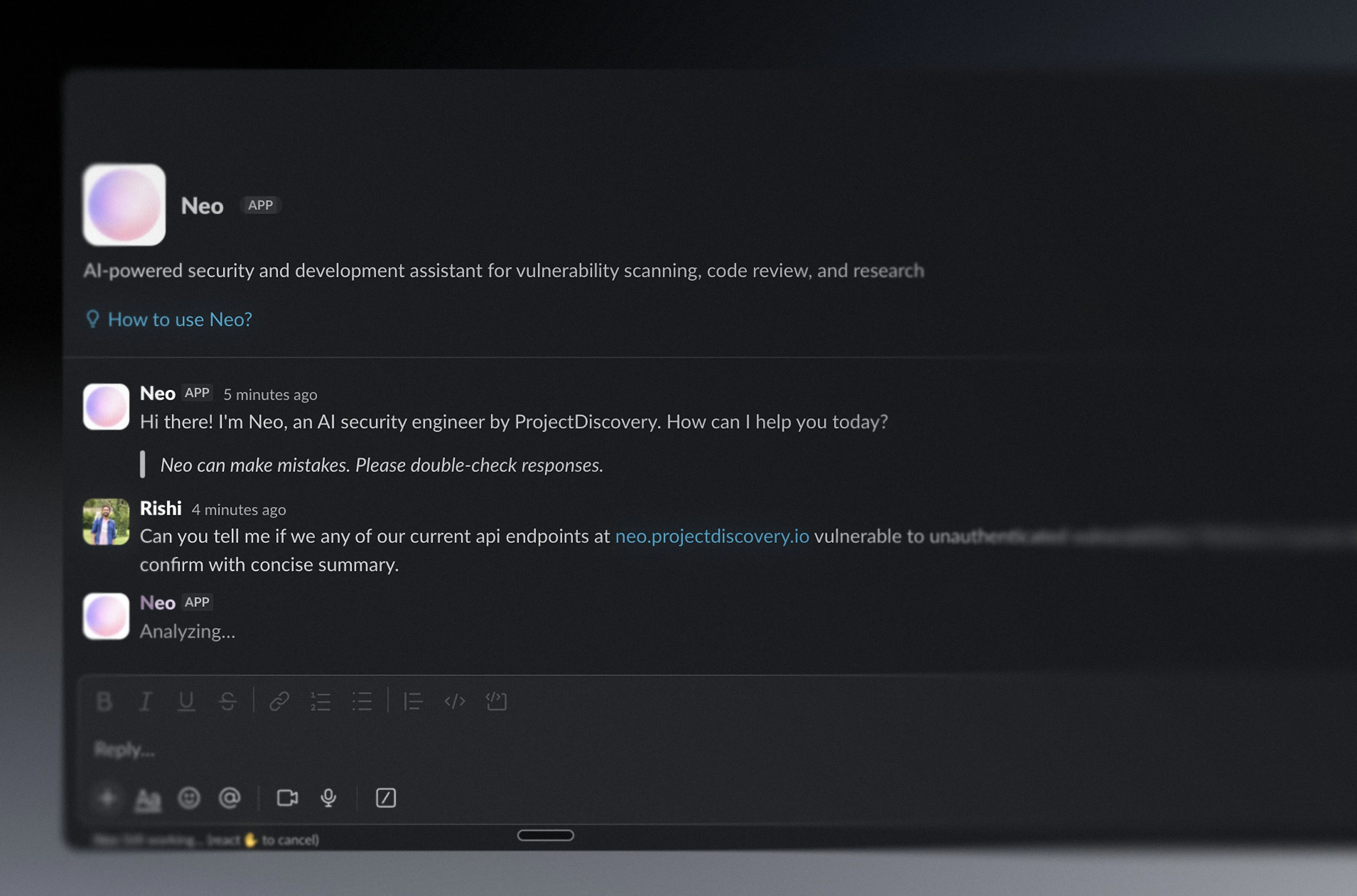
Neo for Slack brings Neo into the place where your team already coordinates work. Ask Neo to investigate a target, review code, summarize findings, or continue an in-progress security discussion without leaving Slack.
Slack is not just a notification sink for Neo. It is a native working surface for:
* starting security tasks in a DM or thread
* collaborating around findings in-channel
* reviewing concise result summaries with attached artifacts
* continuing deeper investigation in Neo when the work outgrows Slack
Neo integrates with Slack as a **native assistant** that your team can use in channels, DMs, and threads. The integration is installed as a Slack app via OAuth. Once connected, Neo appears in Slack's assistant panel and can be mentioned or messaged directly.
The Slack integration is in early preview and currently being rolled out gradually. Reach out to our team to get access.
**Powered by AI.** Neo uses large language models to drive its security analysis. Outputs may occasionally be incomplete or inaccurate — verify findings before acting on them.
Neo for Slack brings Neo into the place where your team already coordinates work. Ask Neo to investigate a target, review code, summarize findings, or continue an in-progress security discussion without leaving Slack.
Slack is not just a notification sink for Neo. It is a native working surface for:
* starting security tasks in a DM or thread
* collaborating around findings in-channel
* reviewing concise result summaries with attached artifacts
* continuing deeper investigation in Neo when the work outgrows Slack
Neo integrates with Slack as a **native assistant** that your team can use in channels, DMs, and threads. The integration is installed as a Slack app via OAuth. Once connected, Neo appears in Slack's assistant panel and can be mentioned or messaged directly.
 By installing, you agree to our [Privacy Policy](https://projectdiscovery.io/privacy) and [Terms of Service](https://projectdiscovery.io/terms). Need help? Email [support@projectdiscovery.io](mailto:support@projectdiscovery.io).
Any authenticated Neo user can connect Slack. If you don't yet belong to a Neo team, a team is auto-created from your Slack workspace name on install. If you are already on a Neo team, your team admin has to complete the install. The full **AI Agent experience in Slack's app container requires a paid Slack plan**. Mentions, DMs, and channel responses continue to work on free Slack plans.
## What Neo Looks Like In Slack
By installing, you agree to our [Privacy Policy](https://projectdiscovery.io/privacy) and [Terms of Service](https://projectdiscovery.io/terms). Need help? Email [support@projectdiscovery.io](mailto:support@projectdiscovery.io).
Any authenticated Neo user can connect Slack. If you don't yet belong to a Neo team, a team is auto-created from your Slack workspace name on install. If you are already on a Neo team, your team admin has to complete the install. The full **AI Agent experience in Slack's app container requires a paid Slack plan**. Mentions, DMs, and channel responses continue to work on free Slack plans.
## What Neo Looks Like In Slack
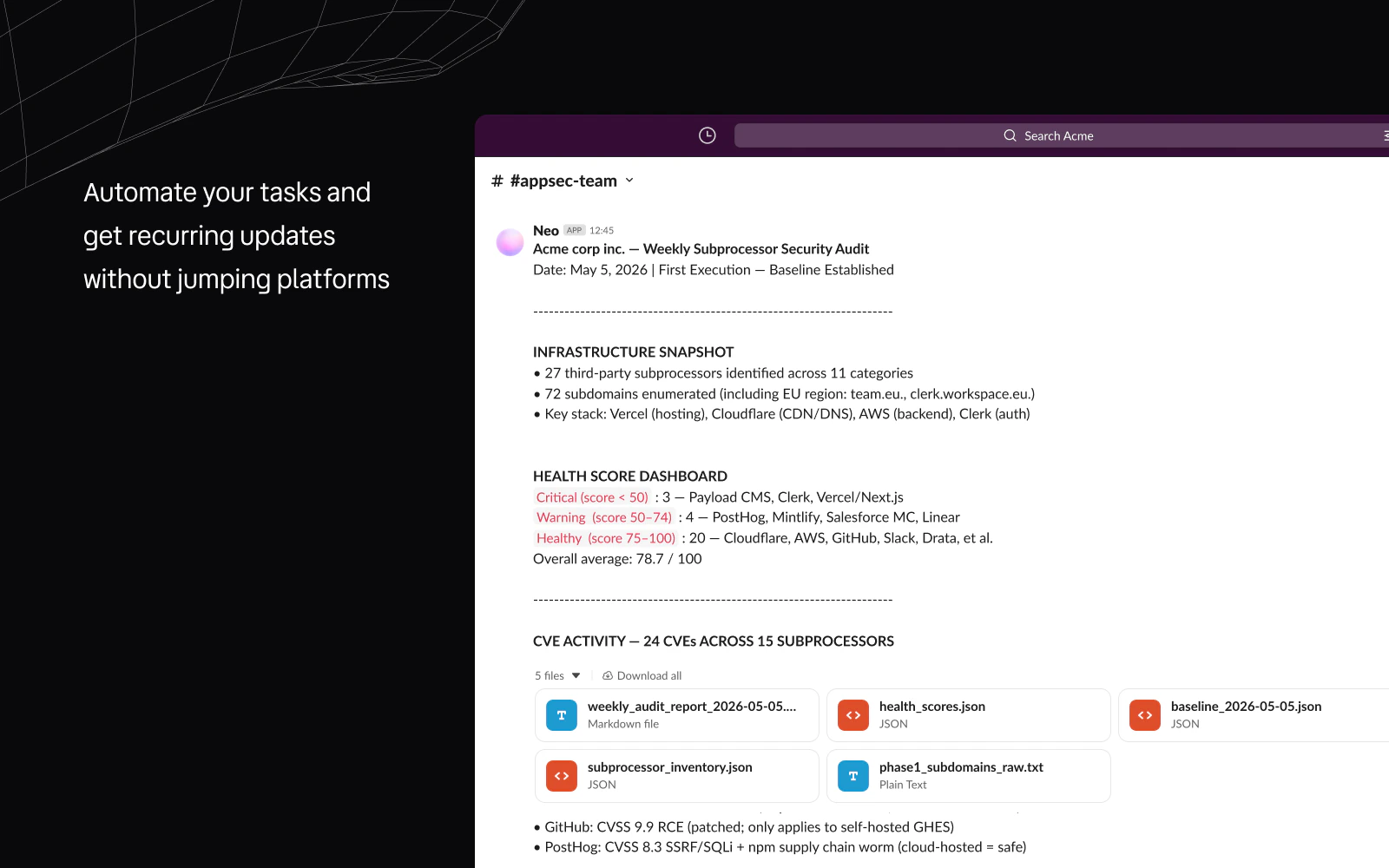
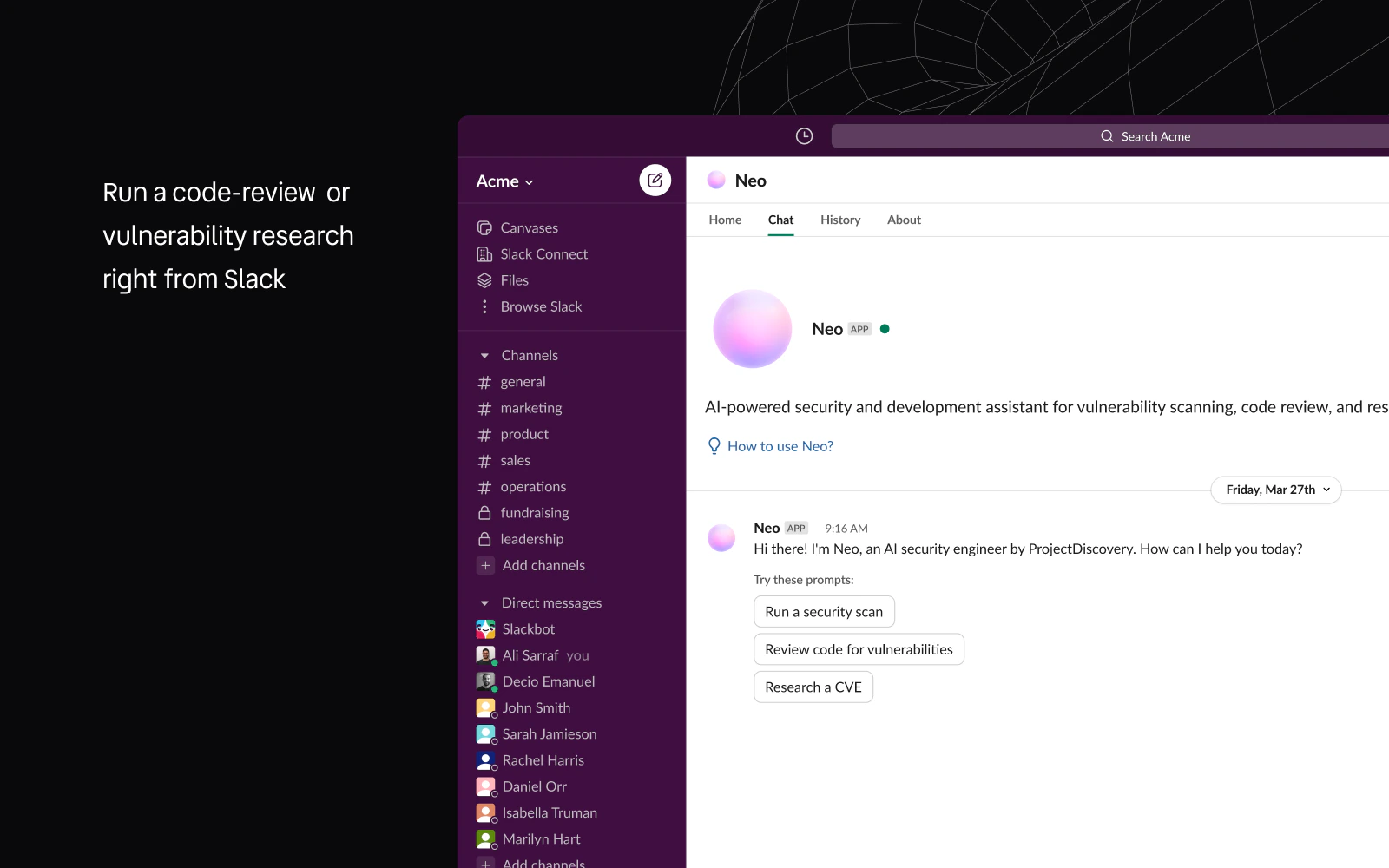
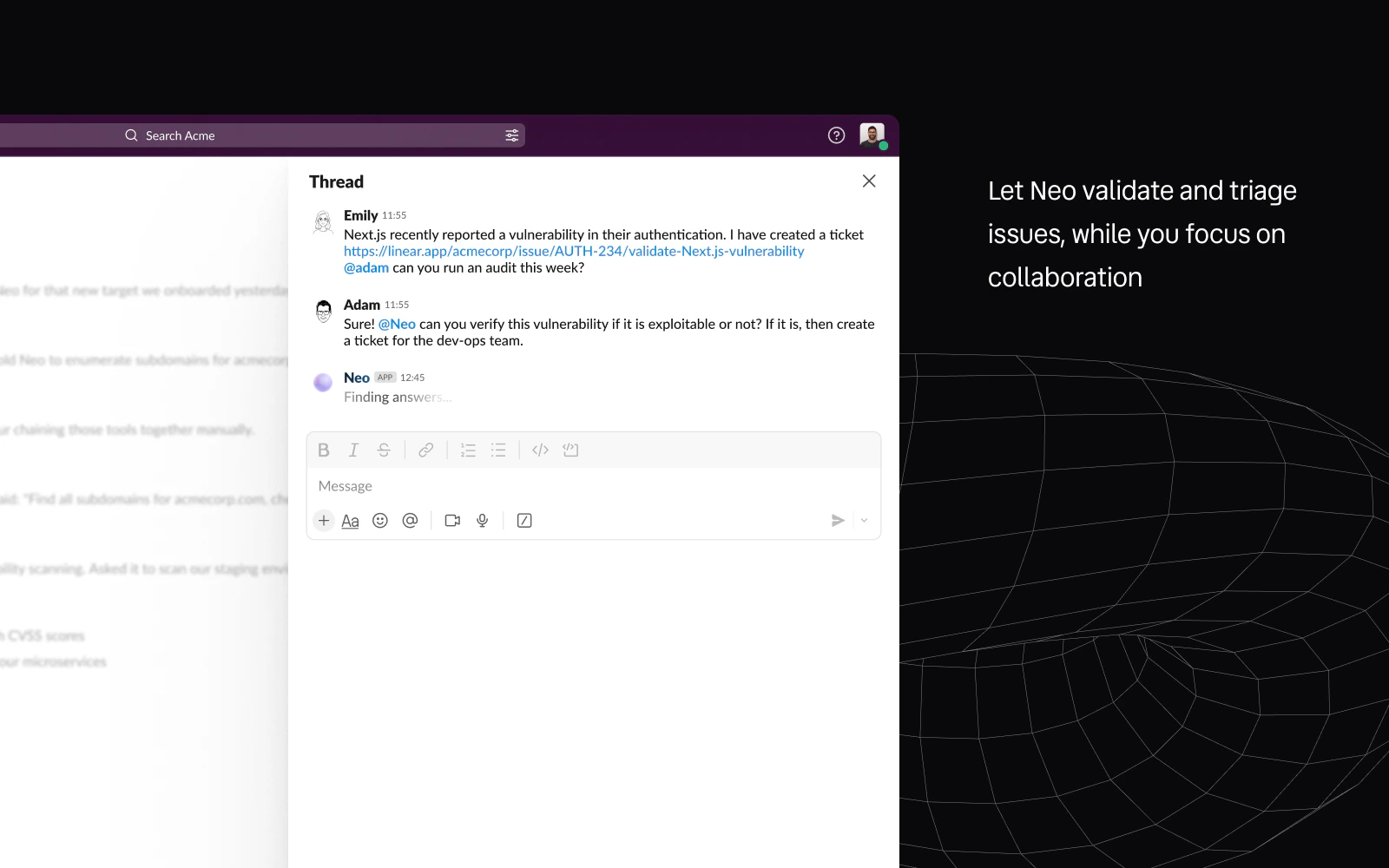 These screenshots reflect the three main interaction modes:
* **Start from the Neo app in Slack** when you want a direct one-on-one workflow.
* **Work in a thread** when your team is already discussing a target, incident, or finding in context.
* **Schedule recurring tasks** that post results back into your channel without leaving Slack.
## What You Can Do
Any request you would make in the Neo UI can be made from Slack. When you message Neo, the **Slack agent** reads your request, determines which specialized agents are needed, and delegates accordingly. If you ask for a recon scan, it triggers the [recon agent](/concepts/agent-architecture). If you ask to test an endpoint for XSS, it triggers the browser and [sandbox](/concepts/sandboxes) agents. If you ask to research a CVE, it triggers the research agent. The Slack agent orchestrates the work and posts the results back to your thread.
You can also **attach files** to your Slack message. Upload a vulnerability report, a scanner output file, or a code snippet, and Neo will download and process it as part of the task.
Neo in Slack is designed for fast, collaborative security work:
* **Recon and attack-surface questions**: Ask Neo to investigate a domain, enumerate subdomains, identify live hosts, or look for exposed services and misconfigurations.
* **Code and vulnerability review**: Ask Neo to review code for security issues, explain a finding, or research a CVE without switching tools.
* **Thread-based follow-up**: Keep work scoped to one Slack thread while Neo preserves context and posts back into the same thread.
* **Artifacts and summaries**: Get concise Slack summaries plus attached output files when the result needs more detail than a short message.
* **Continue in Neo**: Use Slack as the front door, then open the full task in Neo when you need the full execution trail, artifacts, or follow-on work.
## How Responses Work
Slack responses are **brief and human-readable**. Neo summarizes findings into a few sentences with key data points rather than posting full reports. Each response includes an **Open in Neo** link that takes you to the complete task output with all the details, evidence, and artifacts.
When a task produces files (PoC scripts, scan reports, recon data), they are **uploaded directly to the Slack thread** as attachments. You do not need to open Neo to download them.
While Neo is working, the assistant panel shows a **live status** that updates periodically so you know the task is still running. If you need to cancel, react to the trigger message with a [supported abort emoji](/integrations/slack-use-neo-in-slack#stop-a-running-task-with-reactions).
## Thread Continuity
Conversations within a thread maintain context. You can ask a follow-up question in the same thread and Neo references what it already did. Follow-ups like testing that endpoint with a different user role or asking about the `/admin` routes work without re-explaining the target or setup.
## Scheduling From Slack
You can create [**scheduled tasks**](/concepts/scheduling) directly from Slack. Ask Neo to set up a recurring scan and it creates the schedule. When scheduled tasks complete, Neo sends a **DM notification** with a summary and a link to the full results. You can set up a weekly pentest or a daily recon sweep from a Slack message and receive results in your DMs without checking the Neo UI.
## Who Installs vs Who Uses It
Slack installation and everyday usage are deliberately separated:
* **Slack workspace admin**: approves the app installation in Slack.
* **Neo installer**: any Neo user without a team, or a Neo team admin if you already have a team. The installer kicks off the OAuth flow from Neo's integrations panel; if they have no team yet, Neo auto-creates one named after the Slack workspace and adds them as admin.
* **Neo team admin**: handles ongoing management — reconnect and disconnect — once the workspace is tied to a Neo team.
* **Neo team members**: use Neo in Slack after the workspace is connected and their access is enabled.
This split matters because workspace-to-team mapping and reconnect flows are enforced in the product.
## Team Visibility
Slack-originated tasks are scoped to the Neo team connected to that Slack workspace.
* work started from Slack is created in the connected Neo team context
* task visibility follows Neo team access, not a private per-user Slack view
* use DMs for a focused Slack conversation, but expect the resulting Neo work to remain team-scoped
* use channels when the investigation should be visible and collaborative from the start
## Where Neo Works Best
| Workflow | How Slack Helps |
| :-------------------- | :------------------------------------------------------------------------------------------------------------ |
| Team recon | Kick off a recon task from a thread, let Neo summarize results, and keep the full discussion in one place. |
| Vulnerability triage | Ask Neo to investigate a report, explain severity, or summarize likely impact directly in Slack. |
| Code review follow-up | Use Slack for quick security questions after a PR review or to clarify what Neo found and why it matters. |
| Security operations | Use DMs for focused operator workflows or channels for team-visible investigations and incident coordination. |
## Next Steps
Set up the Slack workspace, complete claim/setup, and understand reconnect and disconnect behavior.
Learn how DMs, mentions, threads, attachments, and abort reactions work in day-to-day usage.
Review required scopes, event subscriptions, channel behavior, and admin-only controls.
Diagnose install states, access issues, reconnect problems, and thread/channel edge cases.
Review Slack-specific data handling, trust resources, privacy links, and support options.
These screenshots reflect the three main interaction modes:
* **Start from the Neo app in Slack** when you want a direct one-on-one workflow.
* **Work in a thread** when your team is already discussing a target, incident, or finding in context.
* **Schedule recurring tasks** that post results back into your channel without leaving Slack.
## What You Can Do
Any request you would make in the Neo UI can be made from Slack. When you message Neo, the **Slack agent** reads your request, determines which specialized agents are needed, and delegates accordingly. If you ask for a recon scan, it triggers the [recon agent](/concepts/agent-architecture). If you ask to test an endpoint for XSS, it triggers the browser and [sandbox](/concepts/sandboxes) agents. If you ask to research a CVE, it triggers the research agent. The Slack agent orchestrates the work and posts the results back to your thread.
You can also **attach files** to your Slack message. Upload a vulnerability report, a scanner output file, or a code snippet, and Neo will download and process it as part of the task.
Neo in Slack is designed for fast, collaborative security work:
* **Recon and attack-surface questions**: Ask Neo to investigate a domain, enumerate subdomains, identify live hosts, or look for exposed services and misconfigurations.
* **Code and vulnerability review**: Ask Neo to review code for security issues, explain a finding, or research a CVE without switching tools.
* **Thread-based follow-up**: Keep work scoped to one Slack thread while Neo preserves context and posts back into the same thread.
* **Artifacts and summaries**: Get concise Slack summaries plus attached output files when the result needs more detail than a short message.
* **Continue in Neo**: Use Slack as the front door, then open the full task in Neo when you need the full execution trail, artifacts, or follow-on work.
## How Responses Work
Slack responses are **brief and human-readable**. Neo summarizes findings into a few sentences with key data points rather than posting full reports. Each response includes an **Open in Neo** link that takes you to the complete task output with all the details, evidence, and artifacts.
When a task produces files (PoC scripts, scan reports, recon data), they are **uploaded directly to the Slack thread** as attachments. You do not need to open Neo to download them.
While Neo is working, the assistant panel shows a **live status** that updates periodically so you know the task is still running. If you need to cancel, react to the trigger message with a [supported abort emoji](/integrations/slack-use-neo-in-slack#stop-a-running-task-with-reactions).
## Thread Continuity
Conversations within a thread maintain context. You can ask a follow-up question in the same thread and Neo references what it already did. Follow-ups like testing that endpoint with a different user role or asking about the `/admin` routes work without re-explaining the target or setup.
## Scheduling From Slack
You can create [**scheduled tasks**](/concepts/scheduling) directly from Slack. Ask Neo to set up a recurring scan and it creates the schedule. When scheduled tasks complete, Neo sends a **DM notification** with a summary and a link to the full results. You can set up a weekly pentest or a daily recon sweep from a Slack message and receive results in your DMs without checking the Neo UI.
## Who Installs vs Who Uses It
Slack installation and everyday usage are deliberately separated:
* **Slack workspace admin**: approves the app installation in Slack.
* **Neo installer**: any Neo user without a team, or a Neo team admin if you already have a team. The installer kicks off the OAuth flow from Neo's integrations panel; if they have no team yet, Neo auto-creates one named after the Slack workspace and adds them as admin.
* **Neo team admin**: handles ongoing management — reconnect and disconnect — once the workspace is tied to a Neo team.
* **Neo team members**: use Neo in Slack after the workspace is connected and their access is enabled.
This split matters because workspace-to-team mapping and reconnect flows are enforced in the product.
## Team Visibility
Slack-originated tasks are scoped to the Neo team connected to that Slack workspace.
* work started from Slack is created in the connected Neo team context
* task visibility follows Neo team access, not a private per-user Slack view
* use DMs for a focused Slack conversation, but expect the resulting Neo work to remain team-scoped
* use channels when the investigation should be visible and collaborative from the start
## Where Neo Works Best
| Workflow | How Slack Helps |
| :-------------------- | :------------------------------------------------------------------------------------------------------------ |
| Team recon | Kick off a recon task from a thread, let Neo summarize results, and keep the full discussion in one place. |
| Vulnerability triage | Ask Neo to investigate a report, explain severity, or summarize likely impact directly in Slack. |
| Code review follow-up | Use Slack for quick security questions after a PR review or to clarify what Neo found and why it matters. |
| Security operations | Use DMs for focused operator workflows or channels for team-visible investigations and incident coordination. |
## Next Steps
Set up the Slack workspace, complete claim/setup, and understand reconnect and disconnect behavior.
Learn how DMs, mentions, threads, attachments, and abort reactions work in day-to-day usage.
Review required scopes, event subscriptions, channel behavior, and admin-only controls.
Diagnose install states, access issues, reconnect problems, and thread/channel edge cases.
Review Slack-specific data handling, trust resources, privacy links, and support options.