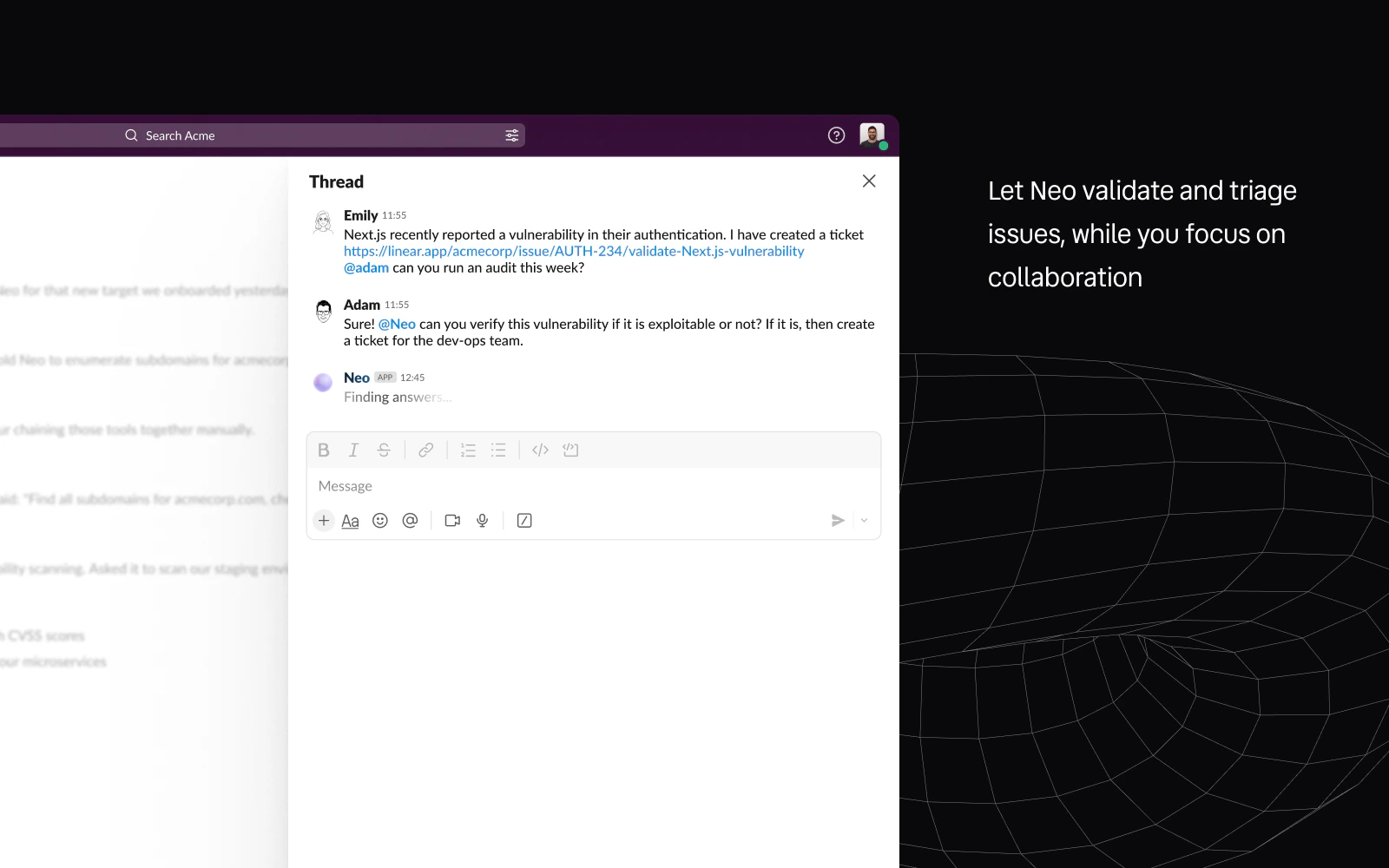
Once your workspace is connected, Neo can be used directly inside Slack for fast, collaborative security work.Documentation Index
Fetch the complete documentation index at: https://docs.neo.projectdiscovery.io/llms.txt
Use this file to discover all available pages before exploring further.
Where You Can Use Neo
Neo works in two main modes:- Direct messages for focused one-on-one interaction with Neo
- Channels and threads for team-visible investigations and follow-up
DMs vs Channels
DMs
DMs are the simplest way to work with Neo:- no mention is required
- the conversation is naturally scoped
- ideal for focused recon, research, and exploratory work
Channels
In channels, Neo is best used when the task belongs in a team conversation:- in public and private channels Neo only responds when explicitly mentioned with
@Neo— plain channel messages are ignored even if the bot is in the channel - in group DMs (multi-person DMs) Neo also requires an
@Neomention to act - keep follow-up in the same thread
- share findings where the rest of the team can see them
Starting A Task
Slack works well for instructions such as:- “Run a full recon on
example.comand look for exposed admin endpoints.” - “Review this code path for auth bypass or IDOR risk.”
- “Research this CVE and tell me whether it is relevant to our stack.”
- “Summarize the likely impact of this finding and what to check next.”
Attachments And Files
When you attach files to your Slack request, Neo can use them as part of the task context. Good examples include:- logs
- text summaries
- code snippets
- reports
- exported findings or evidence files
What Results Look Like
Neo is designed to keep Slack readable:- it posts concise summaries in-thread
- it highlights the key outcome instead of dumping raw output
- it attaches files when the detailed output belongs outside the message body
- it links the work back to Neo for deeper follow-up

Task Visibility Is Team-Specific
Work started from Slack is not treated as a private task owned only by the person who sent the message.- each Slack workspace is connected to a specific Neo team
- tasks created from Slack are stored in that Neo team context
- visibility inside Neo follows the connected team’s access model
- DMs keep the Slack conversation focused, but the resulting Neo task is still team-scoped
Continue In Neo
Slack is the fast front door, not the only surface. If the task becomes more complex, Neo continues to be available in the full Neo UI for:- full execution context
- complete artifacts
- longer follow-up tasks
- reviewable task history
Stop A Running Task With Reactions
If Neo is still working on a request, you can abort the running task directly from the Slack thread by reacting with any of these:- the task is no longer needed
- the target or scope changed
- you realize the prompt needs to be corrected
- you want to stop long-running work before it finishes
- only a currently running Slack task is affected
- Neo confirms the abort request in the thread
- unrelated reactions do not stop work
Example Prompts
Try prompts like these:- “Run a full recon on
acme.comand summarize exposed services and likely risk areas.” - “Review this API design for authentication and authorization gaps.”
- “Research
CVE-2026-XXXXand tell me whether it matters for our environment.” - “Look through this attached report and summarize the issues worth validating first.”
- “Continue the investigation from above and tell me what you would test next.”
Next
- Understand setup and reconnect behavior: Slack Install & Connect
- Review admin controls and permissions: Slack Admin & Permissions
- Fix common issues: Slack Troubleshooting