

Connect a source
A source is any system that produces findings: a bug bounty platform, GitHub advisories, a security mailbox, or a scanner. Add one from Add a source in Triage. Bug bounty platforms, GitHub, and security mailboxes connect natively. Scanners and other tools connect from their API docs.HackerOne
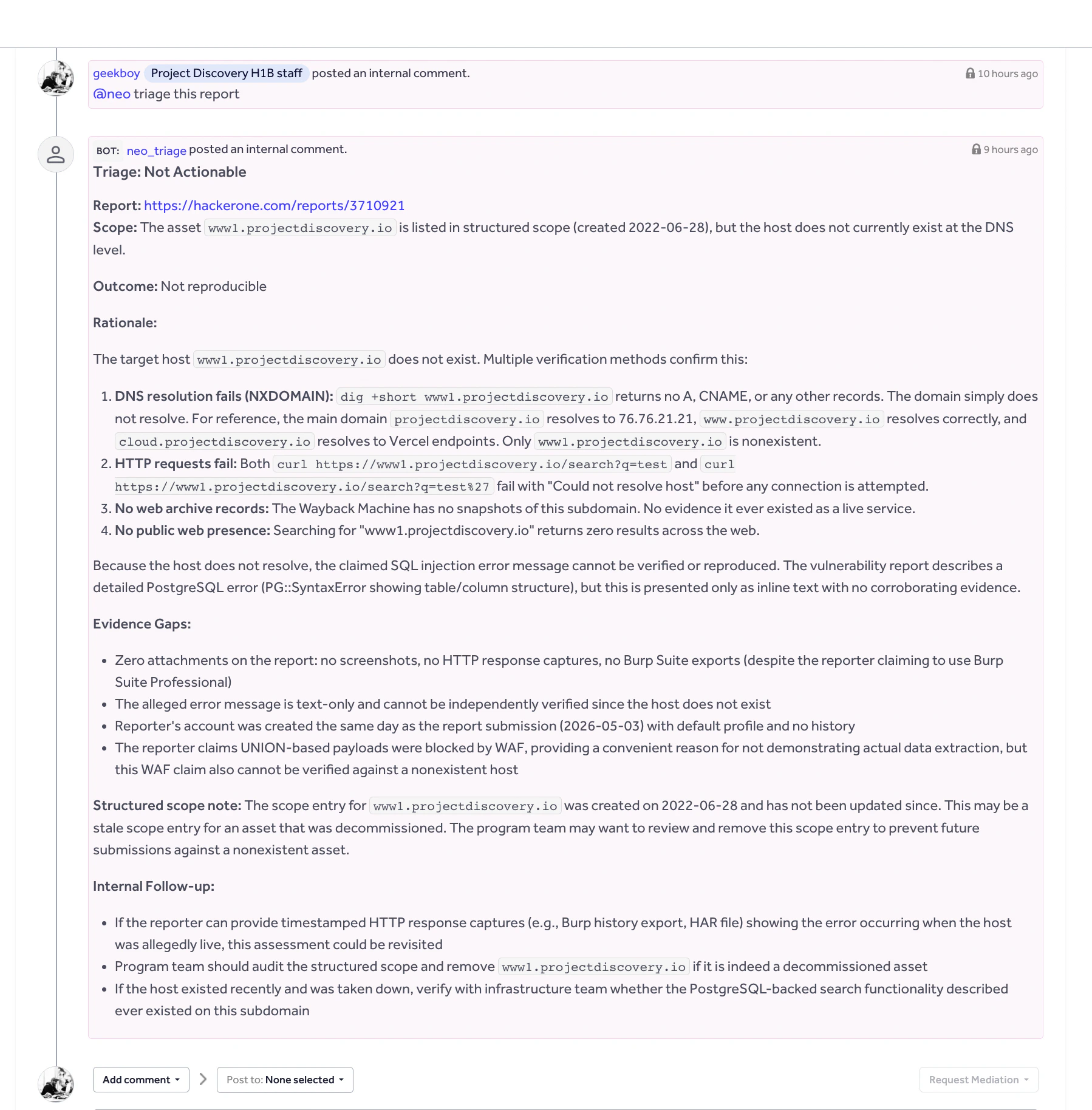
Create an organization API token under Organization Settings > API Tokens in HackerOne (docs), enter the token identifier and token in Triage, and pick a program. Its reports sync into the backlog. HackerOne reports can also start triage from inside HackerOne. Two automations forward reports to Neo, and Neo posts its Triage Summary back to the report as an internal comment.1
Add secrets in HackerOne
Open Organization Settings > Automations > Secrets in HackerOne and create two secrets with these exact names:
neo_webhook_url:https://webhook.api.projectdiscovery.io/hackerone/webhook_events, unless your Neo account team gave you a custom URLneo_api_key: your Neo API key from Settings > API Key
2
Ask Neo to create the automations
With HackerOne connected in Triage, ask Neo to create or enable the automations. This needs an organization API token with Organization Administrator permissions.
Neo only posts internal comments. It does not post public replies, change report state, assign bounty, or take other report-changing actions.
Bugcrowd
Create an API credential on the Bugcrowd API credentials page, enter the identifier and secret in Triage, and choose the programs to sync. Neo only reads programs and submissions and does not change anything in Bugcrowd.GitHub Security Advisories
Install and claim the Neo GitHub App (see Install & Connect), then pick a repository. Its security advisories sync into the backlog.Security Inbox
Sign in with Google so Neo can read the reports sent to your security mailbox. In the mailbox settings, add a triage policy describing what makes a report valid (scope, out-of-scope issues, minimum impact), an optional inbox filter as a Gmail search such asto:security@acme.com, and choose whether the whole team or only you can see it.
Scanners and other tools
Scanners and any other tool with an API connect from their API docs. That includes issue trackers like Jira or Linear when the findings you want to triage already live there as tickets. You describe the API, and Neo reads it, finds the endpoint that returns findings, and builds the integration itself. For example, to bring in issues from Snyk:1
Save the API token as a secret
Create a Snyk API token and add it under Settings → Secrets. If you paste a key into Triage instead, Neo offers to save it as a secret and keeps it out of the source configuration.
2
Describe the source
In Triage, click Add a source. Paste a link to Snyk’s API documentation, a curl command that lists issues, or a plain description of what to import, and attach a spec or README if you have one. Pick the Snyk secret, then click Connect.
3
Follow setup
The source pane shows Neo’s progress as it reads the docs, chooses the endpoint that lists issues, probes it with a sample request, and maps the response to findings. If Neo needs something from you, such as which organization to import, it asks and gives you options to pick from. If setup fails, try again or edit the configuration by hand.
4
Check the mapping
Open the source’s settings to review the sign-in type, the request, paging, and the field mapping for title, severity, and other fields. Fix anything Neo got wrong.
5
Import and keep it synced
The first sync imports existing issues. Large backlogs take longer the first time. Set Sync frequency, from every hour to once a day, so new issues keep arriving, or click Sync now at any time.
6
Triage and automate
Triage a few findings by hand to check the verdicts, then turn on auto-triage for the source.
Work the backlog
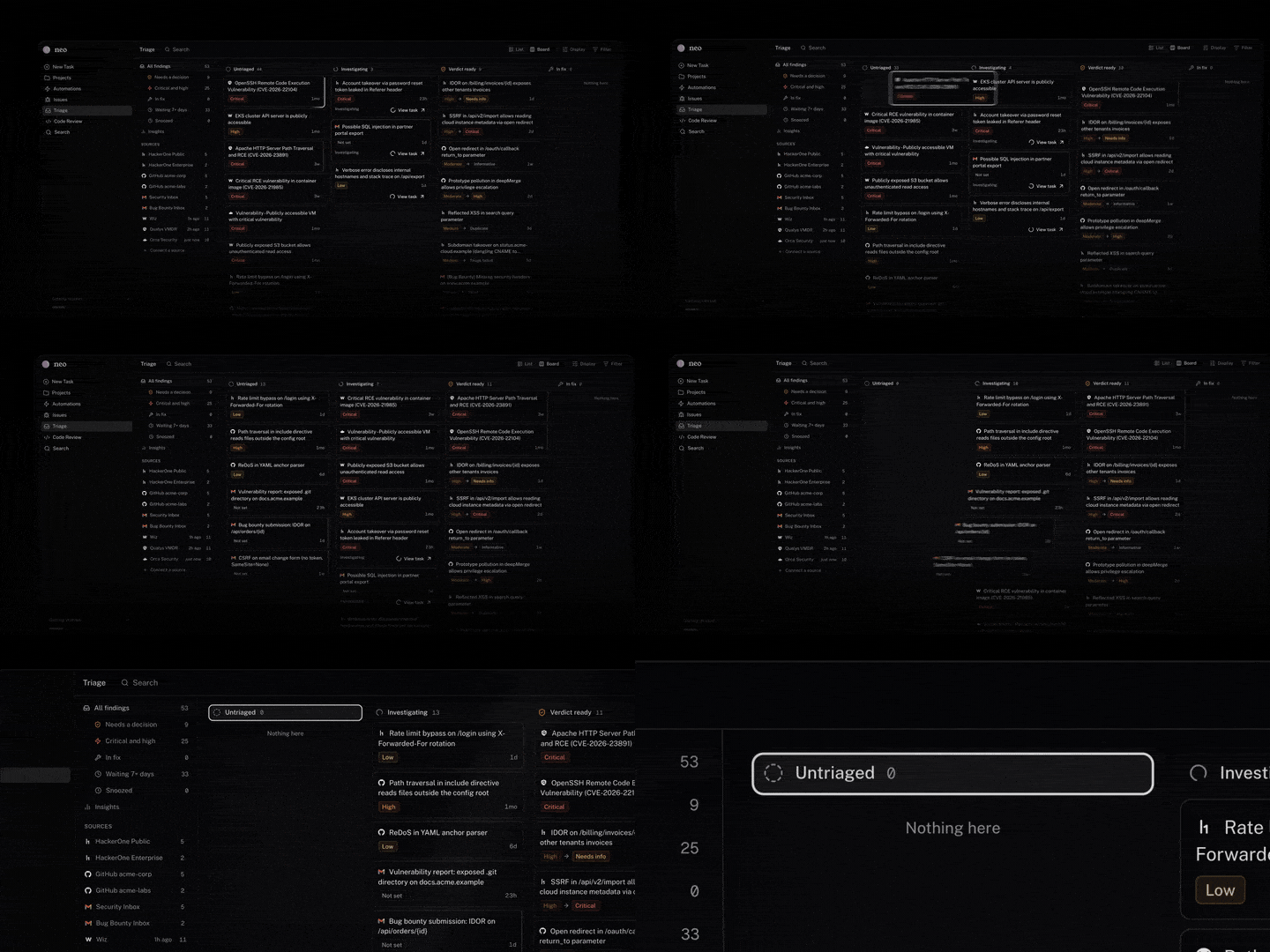
Every finding from every source lands in one backlog. On the board, findings move through Untriaged, Investigating, Verdict ready, In fix, and Closed. Switch to the list view and use filters to narrow it down. Open a finding to see the original report as the source sent it. To triage a finding, click Triage or drag it into Investigating on the board. Neo starts a task with a purpose-built triage workflow, so there is no prompt to write. Open the task to watch Neo read the report’s claims, check for duplicates, and test the issue live. To triage many findings at once, multi-select them or select all, then triage. Deduplication runs across all sources. The same issue reported by three tools under three different titles becomes one finding, and the copies are filed as duplicates.Review verdicts
When triage finishes, the finding moves to Verdict ready with Neo’s full triage report and one of these verdicts.- Valid: reproduced in your environment, with evidence, a severity based on what is actually exposed, and a drafted reply to the reporter
- Likely duplicate: matches an existing finding from any source
- Needs more information: Neo could not reach a verdict without more detail from the reporter
- Informative: accurate, but not an exploitable risk in your environment
- Not applicable: the claim did not hold up, with the reasoning attached
- Spam: not a genuine report