

Before you install
Choose a machine that:- Runs macOS, Linux, or Windows on a supported CPU architecture.
- Can make outbound HTTPS and secure WebSocket connections on
443/tcp. - Has access to the files, tools, and networks that approved Neo tasks require.
- Uses a dedicated, least-privileged operating system account when installed on shared or production infrastructure.
- Has Docker available if you want the default Docker confinement and Neo-managed tool image.
Install and connect
1
Open the Sandbox settings
In Neo, open Settings > Sandbox. The Neo-managed sandbox appears under Neo-managed.
2
Generate an install command
Select Install sandbox, then choose macOS / Linux or Windows. Neo generates a command containing your API key and, when required, your Neo API URL.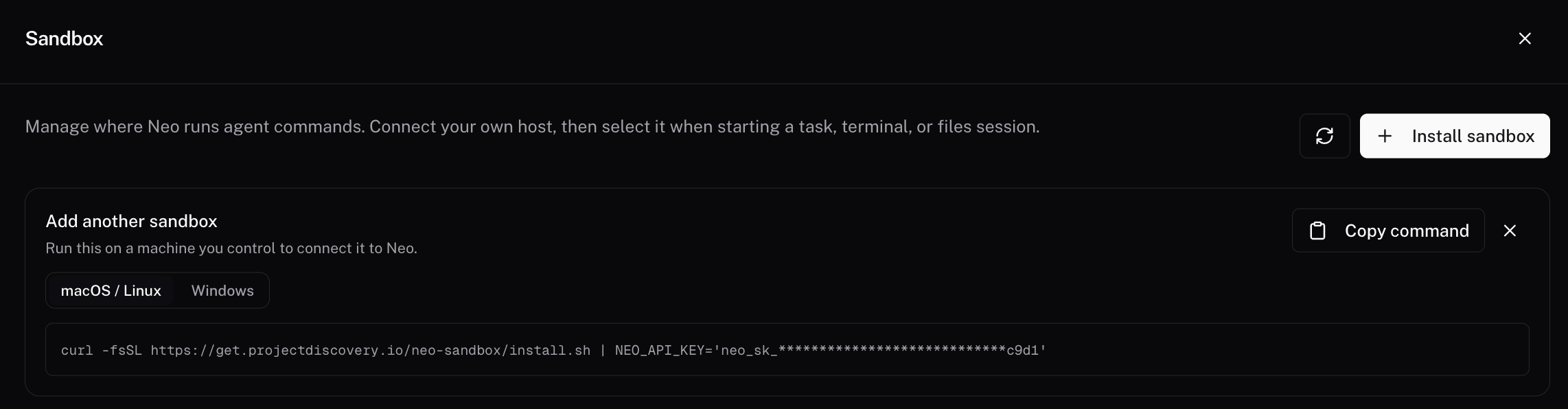
3
Run the command on your host
Copy and run the command on the machine you want Neo to use. The installer downloads the verified
neo-sandbox binary, registers the host, and configures its background service.Treat the copied command as a secret because it contains your Neo API key. Do not store it in tickets, shell scripts, or shared logs.4
Verify the connection
Wait for the host to appear under Self-hosted with a Running status. On the host, you can run: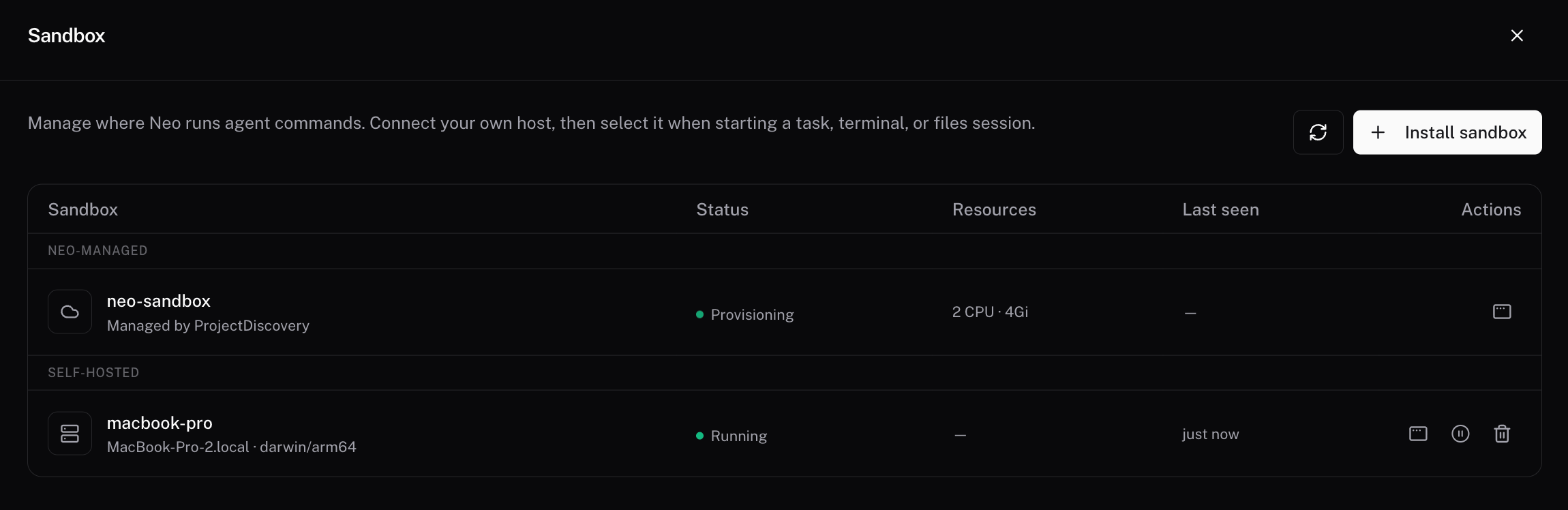
neo-sandbox check should finish with Result: READY.5
Select the sandbox
Start a task, terminal, or files session and select the self-hosted sandbox when you need its network position, files, or tools. If your account also includes a Neo-managed sandbox, leave the selector on it for normal cloud execution.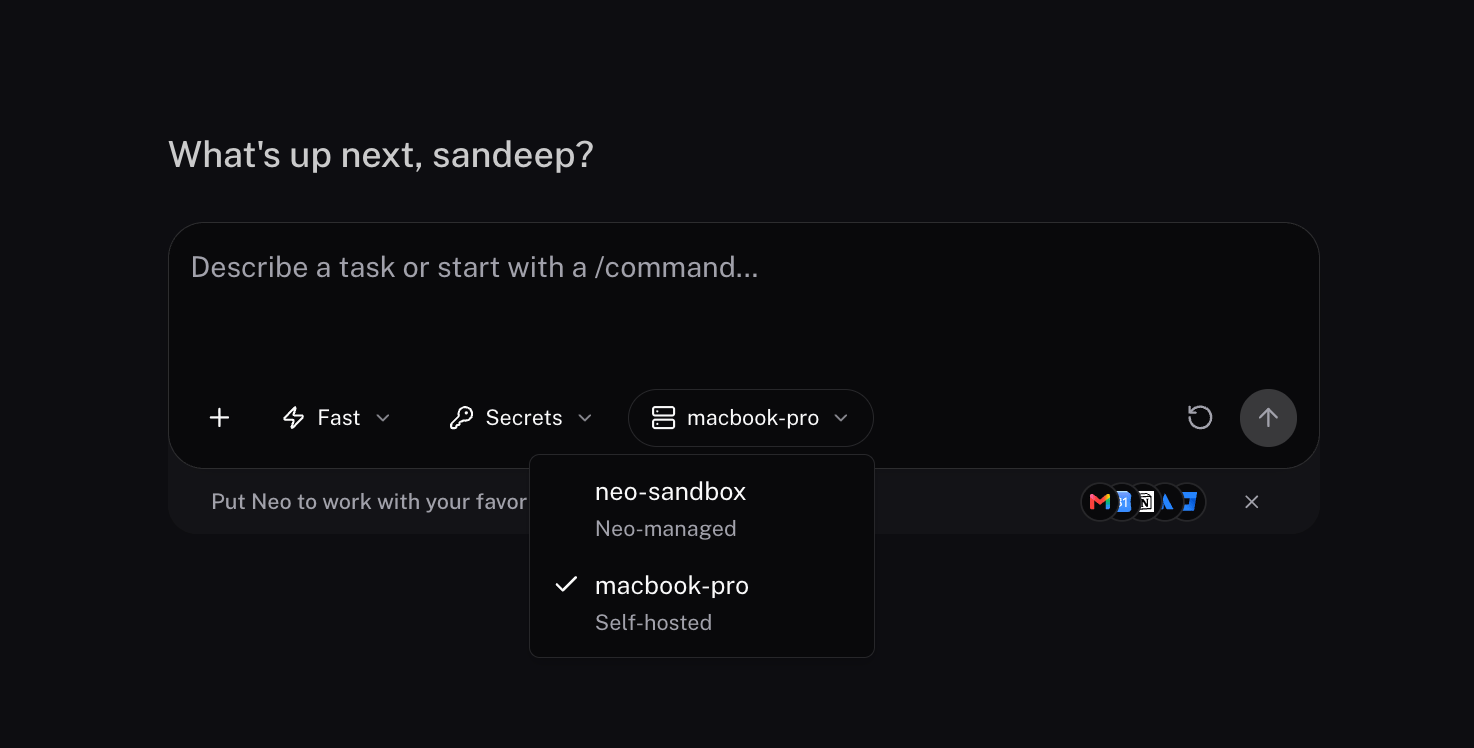
Network requirements
Allow outbound443/tcp from the host. No inbound connection from Neo is required.
If your Neo environment uses custom API or tunnel endpoints, allow the hostnames provided by your administrator instead.
Proxies and restricted networks
The sandbox host needs approved routes to the Neo API, tunnel, and installation or update endpoints. The sandbox’s HTTP CONNECT proxy setting applies only to the persistent tunnel. It does not proxy API registration, token refresh, installer downloads, or update traffic. If the host cannot reach the tunnel directly, configure an approved CONNECT proxy or relay. The host must still reach the Neo API and installation or update endpoints through routes approved by your organization. Verify all required routes withneo-sandbox check.
Network controls for the daemon are separate from the command network policy described below. The daemon must retain access to Neo even when confined commands have no egress.
Confine mode
Confine mode controls/exec command children on a self-hosted sandbox. The daemon, tunnel, file APIs, file index, watcher, and computer-use integrations continue to run on the host.
When NEO_CONFINE is unset:
- A sandbox installed on a bare host defaults to Docker confinement.
- A sandbox already running inside a container defaults to off because the outer container is the boundary.
Windows does not currently provide a native confiner for
auto. Use Docker confinement when Windows commands require an enforceable container boundary.
On Linux, native mode requires bwrap on the service user’s PATH. macOS provides Seatbelt through sandbox-exec. If the requested confiner is unavailable, the service reports a warning and can fall back to another available rung or unconfined execution. Always verify the active runtime with neo-sandbox check.
Choose a confine mode
- Keep the default
dockermode when you want a consistent security toolchain and container boundary. - Use
autowhen the required tools are already installed on macOS or Linux and commands should use native OS confinement. - Use
offonly when commands must run directly on the host and your host policy accepts that trust boundary.
neo-sandbox check after changing the mode. Review the reported runtime and warnings to confirm the expected confiner is active.
Command network policy
Confined commands can access the network by default. This supports scanning, package installation, and calls to target services. Set the following value to deny all egress for confined/exec commands:
off and none preserve the default allowed behavior.
Network denial is enforced only by an active confiner:
The policy applies to command children, not to the sandbox daemon’s API and tunnel traffic. A command explicitly routed to the host also bypasses the policy.
Configure confinement and network policy together:
Data and security boundaries
- Workspace files, the file index, and service configuration remain on the host.
- Neo can request file operations and command execution through the encrypted outbound tunnel.
- File content read by an agent and command output returned to a task can be transmitted to Neo.
- Docker confinement applies only to command children. It does not containerize the tunnel, file APIs, or computer-use integrations.
- Host-mode and computer-use workflows can require broader host access than confined command execution.
- Network denial for commands does not replace host firewall, endpoint security, identity, or data-loss-prevention controls.
Update the sandbox
Automatic updates are enabled by default. The background service checks for verified updates, stages them, and applies them when the sandbox is idle. No manual action is normally required. You can still check for or apply an update manually:--target binary or --target docker to update only the executable or Docker tool image. Registration, credentials, configuration, and workspaces remain in place during an update.
To opt out of automatic updates, set NEO_UPDATE_DISABLE when configuring the service:
Connect, disconnect, and remove
Use Disconnect for a temporary pause. Use Remove when the account should no longer trust that installation.
Troubleshooting
Always start with:The sandbox does not appear in Neo
The sandbox does not appear in Neo
Confirm the install command included a valid API key, DNS works, and outbound
443/tcp is allowed to the Neo API and tunnel. Then run neo-sandbox service start followed by neo-sandbox check.The sandbox appears offline
The sandbox appears offline
Start or restart the local service:Confirm that Settings > Sandbox shows the sandbox as Running.
The tunnel is unreachable
The tunnel is unreachable
Verify DNS and outbound access to
tunnel.neo.projectdiscovery.io:443. For a corporate proxy or restricted network, configure an approved CONNECT proxy or relay and run neo-sandbox check again.Commands cannot reach a target
Commands cannot reach a target
Check whether
NEO_CONFINE_NETWORK=deny is configured. This setting intentionally blocks all network access for confined commands. Remove it or set it to off only when the task is approved to access the network.The workspace is not writable
The workspace is not writable
Avoid running the sandbox with
sudo after installing it as a normal user. Verify that the service account owns the sandbox configuration and workspace directories.macOS displays permission prompts
macOS displays permission prompts
This is expected when commands or computer-use workflows access protected resources. Grant only the minimum access required for the approved task.
Related configuration
- VPN extends the Neo-managed cloud sandbox into a private network.
- Egress IP documents source IP behavior for cloud and self-hosted sandboxes.
- SSH connections provide targeted access to a separate remote host.
- Pre-installed tools explains how tool availability differs between cloud and self-hosted execution.